The Rapid Elearning Blog

Archive for the ‘Mobile Learning’ Category


Rise 360 virtual presentation in Zoom

A guest post by Elizabeth Pawlicki, Senior Manager, Training Programs at Articulate.

Like many of you, we have a ton of zoom meetings and often I’m tasked with presenting information or training sessions. My initial inclination was to build something in PowerPoint or Google slides, but I switched to Rise 360 and haven’t looked back.

I find that even though Rise 360 is designed to be more of a traditional e-learning course authoring tool, it really does lend itself as a great presentation tool.

Let me tell you how I am using it and why.

Creating the presentation in Rise 360 is just as fast as creating a slide.

With Rise 360, I spend less time constructing the layout because I’m not starting with an empty slide. However, I can still make something that’s visually appealing, chunked into distinct sections, and still control what’s on the screen and when.
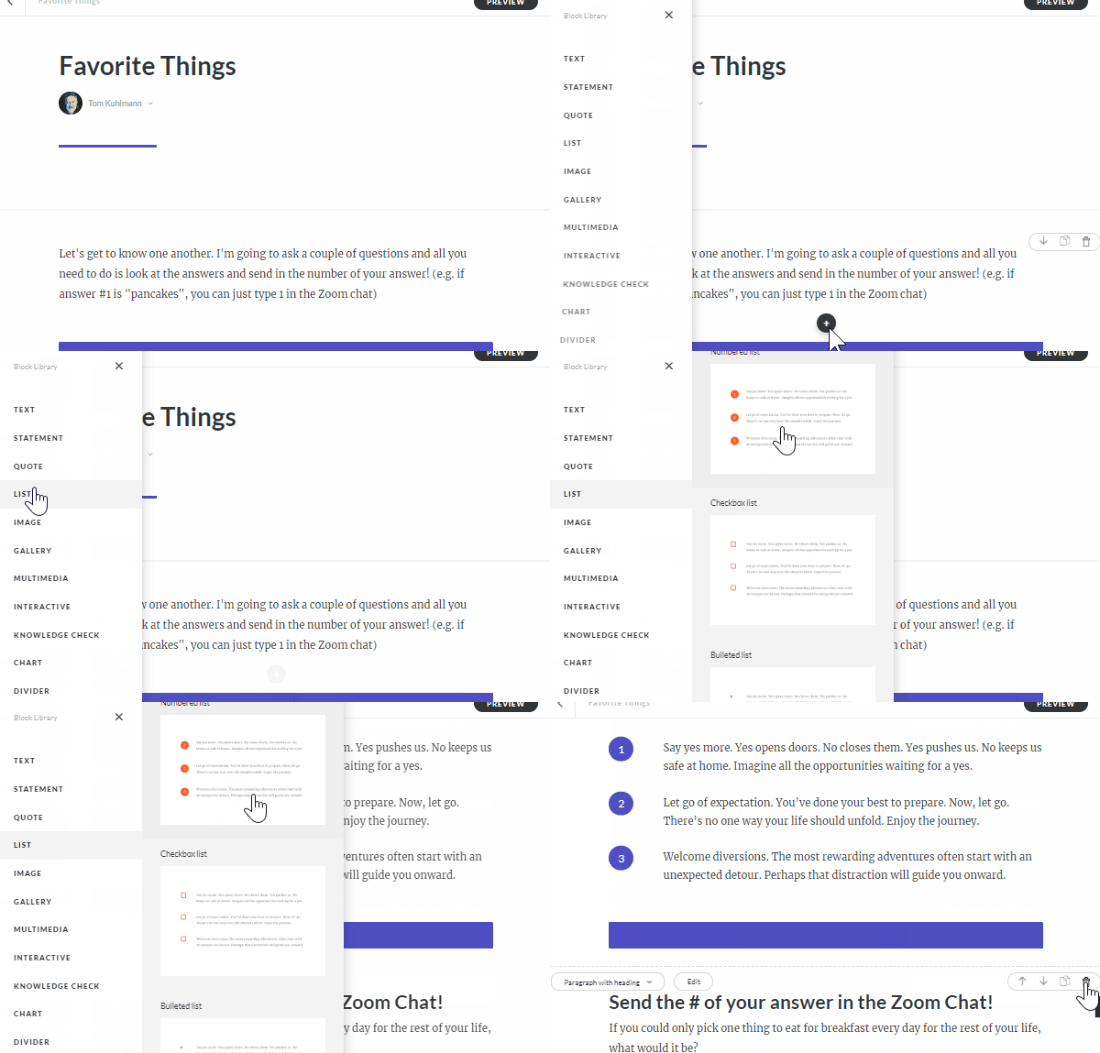
how to create a lesson in Rise 360

In the example above you can see how easy it is to add all sorts of presentation content such as text, media, and interactivity.

Chunking content is easy and can be creative.

I like to use to use the Continue Divider block to chunk the content similar to how I may have it in a PowerPoint slide. And then to advance my presentation, I click the divider to reveal more.
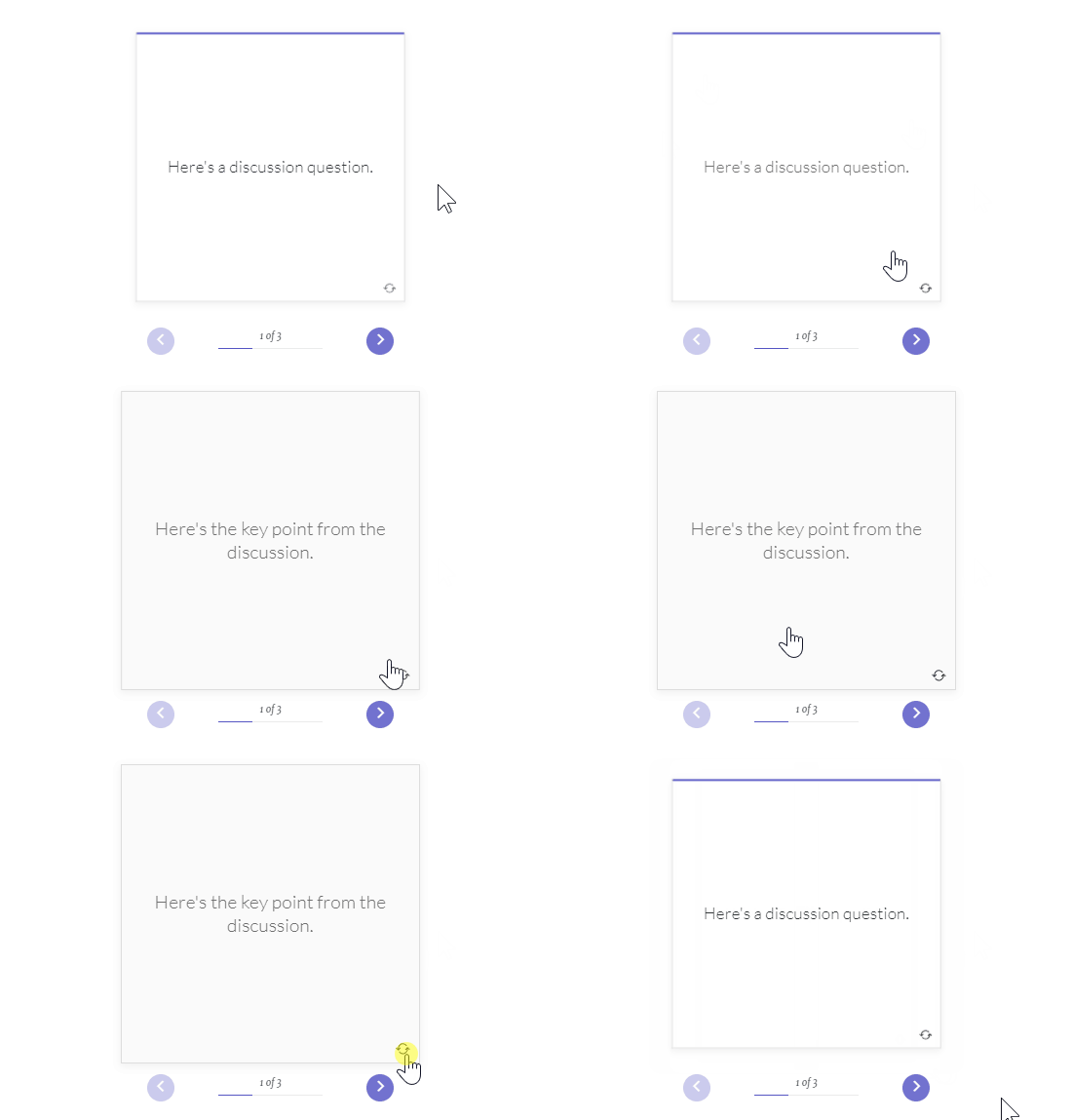
Rise 360 flashcard interaction

Also, I will convert what should have been bullet points to simple interactions like the the accordion or tabs. This allows me to keep people focused on what we’re discussing. The flashcard block is a great way to talk through things, ask a question, and then reveal content when clicked.

Augment the presentation with embedded content.

Embedding content from other sources can make the live presentation more engaging or add extra capability. For example, often in our conversations, I present a timed activity.
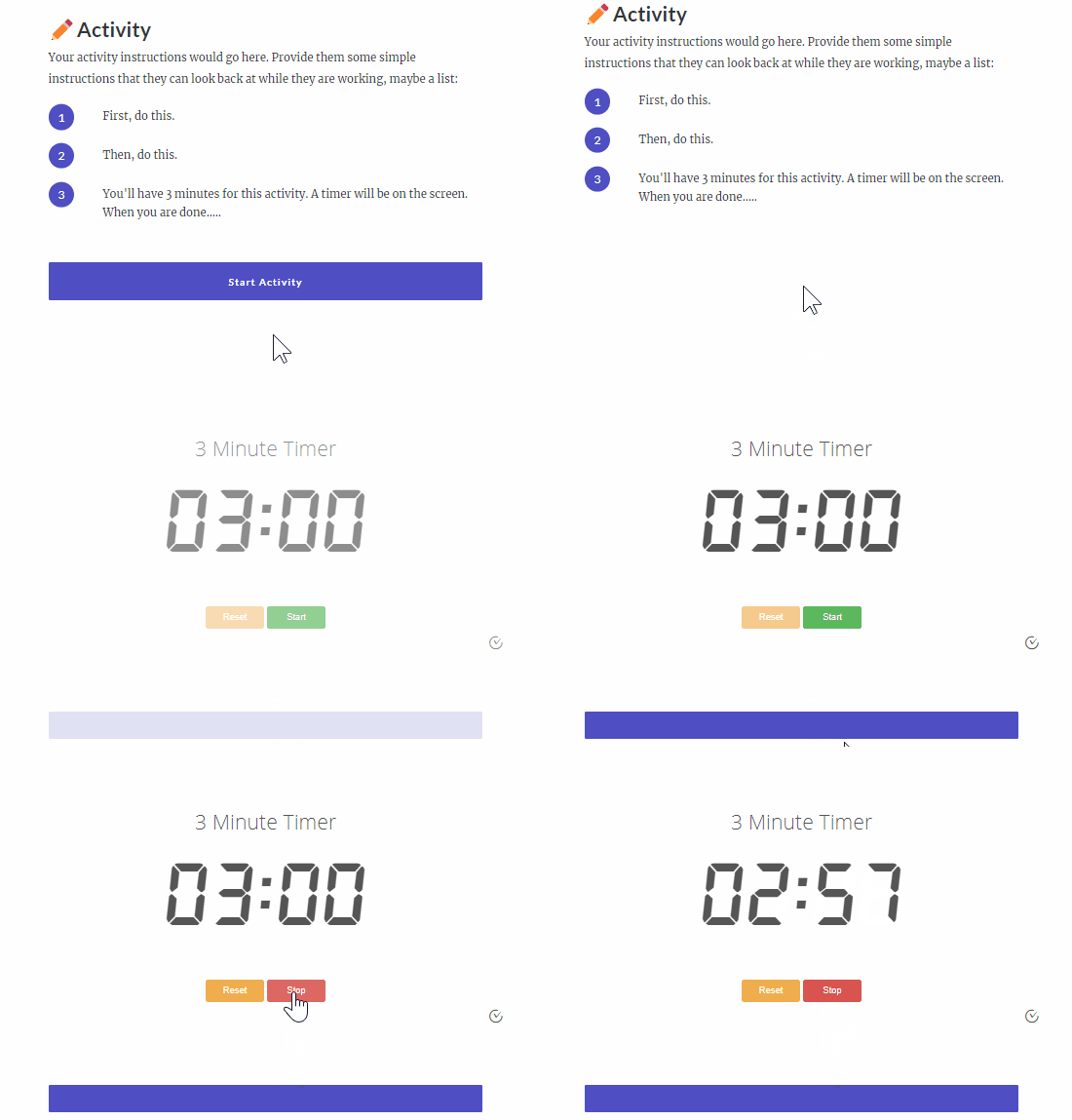
add a timer to Rise 360

This is where I use the embed block in Rise 360 and add a timer from vclock using their embed code. You can also embed maps and all sorts of extra media using that block. Basically, if you can find it online you can add it to your presentation.

Skipping unnecessary content is super easy.

Often during the presentations I find the attendees already have a good grasp of the information. In those cases I like to skip to something else. That’s where the sidebar menu comes in handy where I can jump to specific content that I’ve chunked into lessons.

Keeping the sidebar visible is a great way to let the people know where we’re at and where we’re going. So sometimes I keep it open. But it’s easy enough to collapse the sidebar and only show it when I have to.

The course works well as a leave-behind resource.

One of my favorite things is that I can just share the presentation as is. I don’t need to save a PDF of slides or email them a copy of my PPT presentation.
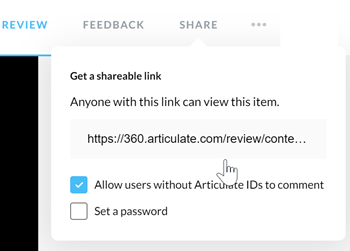
share courses using the review 360 link

I publish the Rise 360 presentation to Review 360 and then provide the group with the review link. For example, here’s a presentation that I created for the blog that you can access now.

Keep the conversation going.

An added benefit to using Review 360 is that since the Rise 360 presentation is published to Review 360 the attendees can leave comments. This is really great if we run out of time during an activity or discussion. We can continue to conversation in the published presentation.

Test it out. Go to the demo presentation and post a comment.

Keep the content updated.

I can always make updates to the presentation and then republish the new Rise 360 presentation over the old version knowing that everyone will have the same updated content. This is really important for things like sales training and presentations where the content is updated and changes often.

Articulate Rise 360 Presentation Example

I recorded a quick video to show how I use Rise 360 as a presentation tool. Check it out.

Click here to view the presentation on YouTube.

Have you used Rise 360 as a presentation tool? If so, what worked well? And if not, why haven’t you tried it yet?


Elizabeth Pawlicki bio

Events

Free E-Learning Resources

Want to learn more? Check out these articles and free resources in the community.

Here’s a great job board for e-learning, instructional design, and training jobs

Participate in the weekly e-learning challenges to sharpen your skills

Get your free PowerPoint templates and free graphics & stock images.

Lots of cool e-learning examples to check out and find inspiration.

Getting Started? This e-learning 101 series and the free e-books will help.


Rapid E-Learning Blog - how long should e-learning course be

I’m often asked how long an e-learning course should be. My quick response is that it should last long enough to meet your objectives. On the surface that’s not a bad answer, but it’s usually one that doesn’t satisfy either. There are a few variables when it comes to determining how long an e-learning course should be.

However here are some tips that may help answer the question.

Chunk Your Content

The trend in online learning is small, digestible chunks. Some people call it YouTube learning or microlearning. I like to call them coursels (as in course morsels).

The trend makes sense. We’re using more and more mobile devices where quick hit training works better and chunked content is easier to process. By chunking the content, you also have a more agile production environment. The modules are easier to update and modify; and they’re easier to move around to create custom learning solutions.

Rapid E-Learning Blog - how long should e-learning course be using coursels

As far as course length, with chunking it may be determined by the learner and not content. Some people may only need one chunk to meet your learning objectives while others may need more.

Space the Learning Events

There’s a lot of evidence that suggests that spacing the learning events over time may improve learning outcomes. Some organizations create coursels that are introduced over time. The first coursels introduce the big picture concepts and then over time the learning is reinforced through various activities that require recall and application.

Rapid E-Learning Blog - how long should e-learning course be using spaced events

Years ago we built a training program where we had a few basic courses that highlighted the organization’s specific performance expectations. And then we scheduled a series of follow up challenges that required the learners to process various scenarios (using what they learned) and then discuss their solutions with their managers.

There’s also an effective way to space training over a shorter period of time in a single sitting. The main idea is to present the course content three times divided by ten-minute breaks. It may look like this: 1) the instructor presents content, 2) 10 minute break activity, 3) students recall content, 4) 10 minute break activity, and 5) students apply the content to demonstrate understanding of content.

I haven’t seen this approach applied to online learning, but I can see how this could work in a blended environment where live instruction blends with online content. In either case, chunking content and spacing out how it’s delivered changes our understanding of how long a course should be.

Be Learner Centric

One of the great advantages of e-learning is that it’s asynchronous which means it’s not confined by geography or time. That gives the learner the flexibility to take the course at a time most convenient to the learner.

Another advantage is that the learning is self-paced, which directly relates to the question of how long the course should be. An experienced person may learn a lot faster than the new person. Thus, length of time is irrelevant.

Rapid E-Learning Blog - how long should e-learning course be providing learner centric

Take advantage of what e-learning provides to create an environment that works best for the learner.

Here are a few tips:

    • Give them reasons to explore the course content.
    • Have them prove understanding as a measure of success.
    • Provide a lot of resources and guides to reinforce what they’re learning.

Slide Count is Irrelevant

Often when people ask about course length they also ask how many slides or screens the course should have. Some of this probably comes from the presentation mindset where each slide represents X minutes and if you have a 30 minute presentation you’re constrained to X slides.

However when it comes to e-learning, slide count is irrelevant. The learner looks at a screen, they don’t look at slides. You can put five pieces of information on a single slide or spread that same information over five slides. To the learner it makes no difference.

Essentially the screen shows content—mostly text and some sort of media like images and shapes. That content changes throughout the course. Does it matter if the content changes at the slide level with layers or by jumping to new slides? The end user only knows what’s displayed has changed. They don’t really care how you made it change.

It’s All About Meeting Your Learning Objectives

We all come to learning with different experiences and levels of understanding. Some people can pick up new content quickly while others may need more practice activities and feedback. E-learning is perfect for this approach because it’s flexible and can be tailored to learner needs and progress.

However, any course you build is only a solution to meet specific goals. We don’t build e-learning courses just to build courses. We build them to meet specific needs. Thus looking at the best length for a course is a bit misguided and focused in the wrong area. Ultimately we need to determine which intervention on our part helps the learner meet the learning expectations.

If the tips above don’t work for you, then the next best answer is “15 minutes.”

How do you determine course length?

Events

Free E-Learning Resources

Want to learn more? Check out these articles and free resources in the community.

Here’s a great job board for e-learning, instructional design, and training jobs

Participate in the weekly e-learning challenges to sharpen your skills

Get your free PowerPoint templates and free graphics & stock images.

Lots of cool e-learning examples to check out and find inspiration.

Getting Started? This e-learning 101 series and the free e-books will help.


html5

Before we get started: Flash is going away soon. And if you have a lot of older e-learning courses, it’s something that you should be dealing with now before it’s too late. Start pulling together the original source files because you’ll have to republish or maybe rebuild a few of the older courses. If you don’t have the sources files, a couple of the resources below should help.

What made Flash work is that everyone had the same player and, for the most part, things kind of worked the way they were supposed to. Without the Flash player, courses run through the browser. Thus the demand for HTML5 courses.

The challenge however is that you don’t have control over the browsers and devices people use to consume e-learning courses. Ten years ago, almost all courses were Flash-based and ran on a personal computer. Today, courses are accessed via computers and mobile devices (which could mean a tablet or smart phone).

There are thousands of different devices between personal computers, Android, and Apple. Each device has its own technical constraints such as memory, processor, and screen size. They can run on different operating systems and different versions of those systems.

Also, how many different browsers are there for these mobile devices and computers? And really, why is any organization still using Internet Explorer 11?

And here’s the main point in all of this: the browsers that have to display the e-learning courses are not all the same or created equal.

What that means for you is the course you build may not work as intended when accessed by someone on a different device using a different browser. That’s why it’s so important to test, test, and test.

As I mentioned in an earlier post, create a demo course with media, interactivity, and animations. And use that to test the user’s learning environment. You also want to test on multiple devices to make sure things work the they way you want.

Despite all of the testing, you’ll still have customers who have expectations that are outside your control. Some customers and clients just don’t know enough about this stuff so their expectations may not be aligned with reality. They may want a lot of media or animations, that may not work for their users.

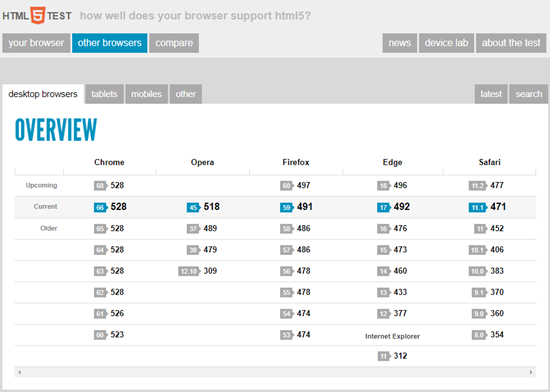
In those cases, I recommend referring them to this site: HTML5 Test

What I like about the site is that it’s a great way to SHOW the differences in browsers and devices and use that as a way to discuss what needs they have, what can be be built, and how the courses may respond.

html5

You don’t need to go into some long-winded technical explanation about HTML5. Use the site as a means to expose them to potential issues or constraints and ways to work around them. The last thing you want is a fancy product that doesn’t work in the end-user’s browser.

So, make sure you get prepared for the end of Flash and know how to set expectations for the courses you do build. The good news is that the technology is changing, the devices are getting better, and expectations and what you can deliver are converging.

Events

Free E-Learning Resources

Want to learn more? Check out these articles and free resources in the community.

Here’s a great job board for e-learning, instructional design, and training jobs

Participate in the weekly e-learning challenges to sharpen your skills

Get your free PowerPoint templates and free graphics & stock images.

Lots of cool e-learning examples to check out and find inspiration.

Getting Started? This e-learning 101 series and the free e-books will help.


how to preview responsive courses and mobile learning in your browser

Here’s a simple way to test your published courses when building responsive mobile learning. While each browser is a bit different, most have some sort of emulation features.

Preview Your Published Responsive Courses

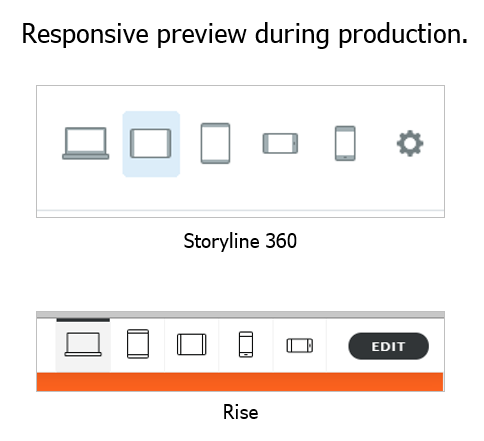
During your course production you can preview the course using one of the responsive preview options. This gives you a very good approximation of how the course will respond to different devices whether they’re in portrait or landscape orientation.

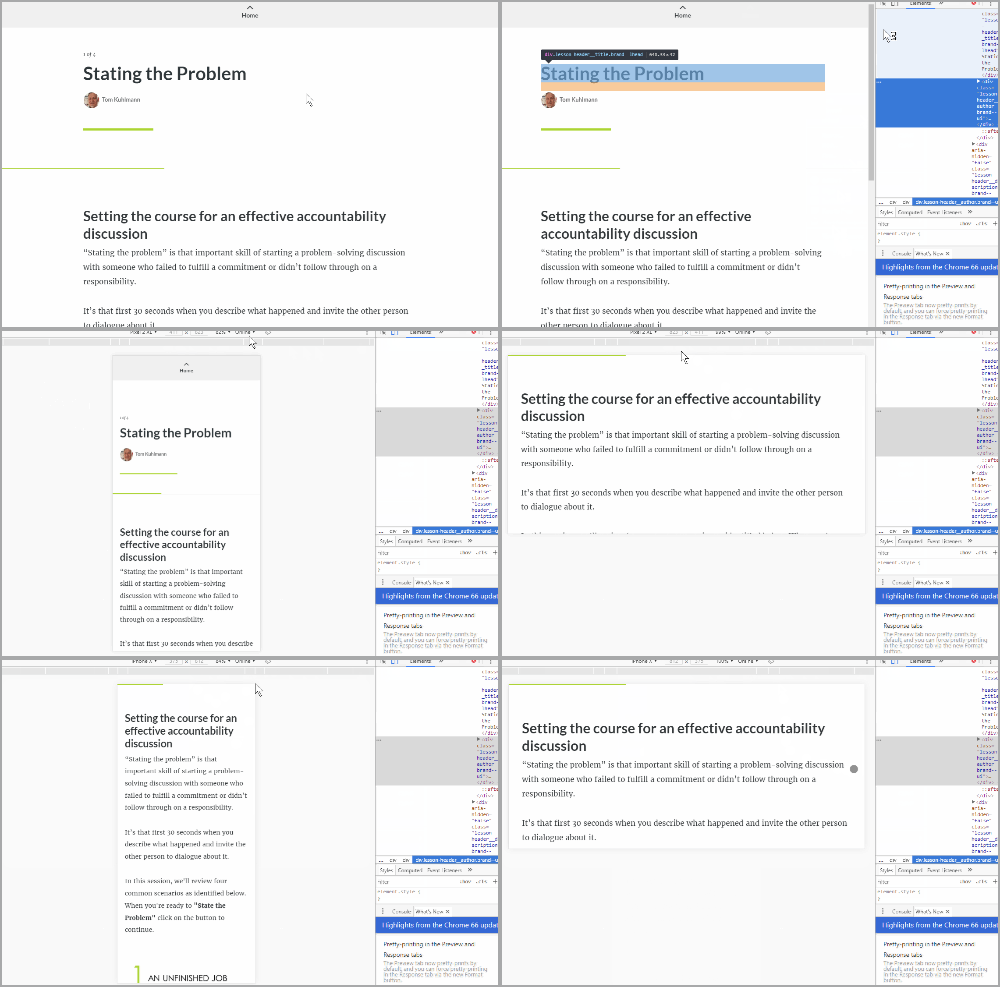
After you publish the course and upload it to your LMS (or web server) you can also preview it via the browser. Open the course and right click to access the developer tools (see tutorials below). From there you can access the device emulator to test how the course will respond to different devices or screen resolutions.

For example, here’s a responsive e-learning course I published in Rise. I want to see how it responds to other devices after it’s published. Some people scale their browsers to do this, but it makes more sense to use the browser’s feature instead.

Responsive Courses mobile learning demo via Chrome browser

Get the Aspect Ratio of Popular Devices for Responsive Courses

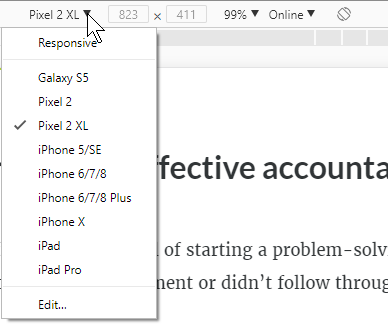
One side benefit is that in Chrome and Firefox they expose the resolutions for different mobile devices. Even if you don’t use the responsive emulators, it’s still an easy way to get the aspect ratios and resolutions of the popular mobile devices. I use these to to set the story size dimensions for my mobile Storyline courses when I build for specific devices.

Responsive Courses mobile learning device aspect ratio

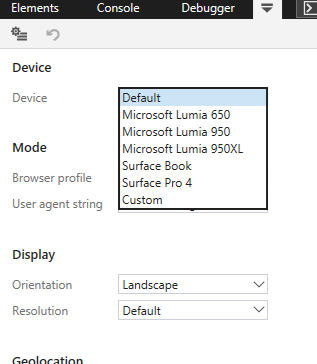
Unfortunately, Microsoft’s Edge is a bit myopic and behind the times as they assume that people only use their devices. Of course, it doesn’t really matter because you can choose the orientation and customize the resolution.

 Responsive Courses mobile learning aspect ratio emulator Edge browser

How to View Responsive Courses Tutorials

Here are some quick tutorials where I go through this feature in the following browsers:

Each browser is a little different, but it is a handy feature to access when building responsive mobile learning. One thing to keep in mind is that what you get via the browser is an emulation and may not be an exact representation of how your course will really behave, but for the most part it should be fine.

Events

Free E-Learning Resources

Want to learn more? Check out these articles and free resources in the community.

Here’s a great job board for e-learning, instructional design, and training jobs

Participate in the weekly e-learning challenges to sharpen your skills

Get your free PowerPoint templates and free graphics & stock images.

Lots of cool e-learning examples to check out and find inspiration.

Getting Started? This e-learning 101 series and the free e-books will help.


To quote the famous bumper sticker, “Learning Happens!”

I use that quote all the time with the entry-level instructional designers I train. It’s a reminder that people learn regardless of the training plans we put in place. And often they learn despite them.

Learning is innate to being human. It’s part of our nature and we’re never in a mode where we’re not learning something. It doesn’t mean that we always learn the right things or make the right adjustments to what we learn, but we are in a continual process of learning.

In that sense, learning hasn’t changed much over the years.

Training Today Versus Yesterday

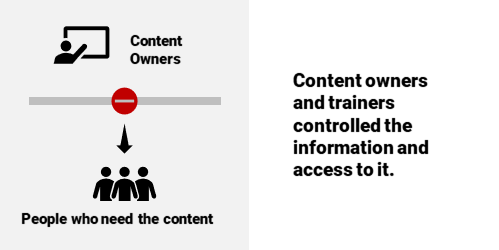
What has changed is how we acquire and use content to learn. In the past, training teams (or the content owners) controlled access to most of the content. In a sense, they were the knowledge brokers. They organized content into “training” and provided “certification.”

Learners Today

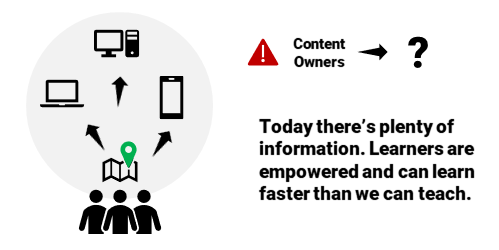
Today, it’s a bit different. Learners are empowered in ways they weren’t a few years ago.

  • The Internet (and internal networks) make it easier to catalog and find content.
  • Online communities connect peers who can extend the one person’s realm of expertise.
  • What they find, they can save, curate, and share with their community of learners.
  • Mobile devices mean people can access content at a point of interest or need. It gives them information at the right time, and often at the right place.
  • There’s an app for everything (or so it seems). And in the same vein, there’s a YouTube video for everything, too. Thus, you may not gain a deep understanding of the content, but you generally can get a functional understanding.
  • Do you need to be a certified expert? Seems people are more inclined to become micro experts with their fingertip learning.

Trainers Today

What can today’s trainer do to respond to these changes?

  • Focus less on formal training programs that tend to be too long and provide more content than is needed.
  • Lean more on bite-sized learning modules that are chunked to focus on single objectives.
  • Learn from online tech and marketing. They track people and know what to deliver and when. I’m not a big fan of online ads, but I will have to say I’m always impressed with the ads that Facebook serves. Usually, they are things that interest me. The same with when I travel. Google knows where I’m at and serves up relevant information, often before I need it. Seems that training could implement similar ideas.
  • Build a community and let it be organic. There’s a place for formal training. But there’s also a place for learning communities where people can curate and share. And they can do that with little formal oversight.
  • There’s still a need to vet content, but what’s vetted can be packaged differently in formats more flexible to meeting real needs.

The reality is that people learn. And they don’t always depend on what we put in front of them. In fact, often they learn faster than we can teach. Are we adjusting to the needs or still relying on an old-school model?

How are you addressing the changes in our industry?

Events

Free E-Learning Resources

Want to learn more? Check out these articles and free resources in the community.

Here’s a great job board for e-learning, instructional design, and training jobs

Participate in the weekly e-learning challenges to sharpen your skills

Get your free PowerPoint templates and free graphics & stock images.

Lots of cool e-learning examples to check out and find inspiration.

Getting Started? This e-learning 101 series and the free e-books will help.


PowerPoint graphics

In a previous post, I shared how I built an interactive scenario in Rise. I’ve gotten lots of emails asking how I built the graphics like the headers and the flashcard interactions for the interactive scenario. So in today’s post, I’m going to show you a simple way to build graphics for your Rise e-learning courses.

PowerPoint graphics headers for Rise blocks

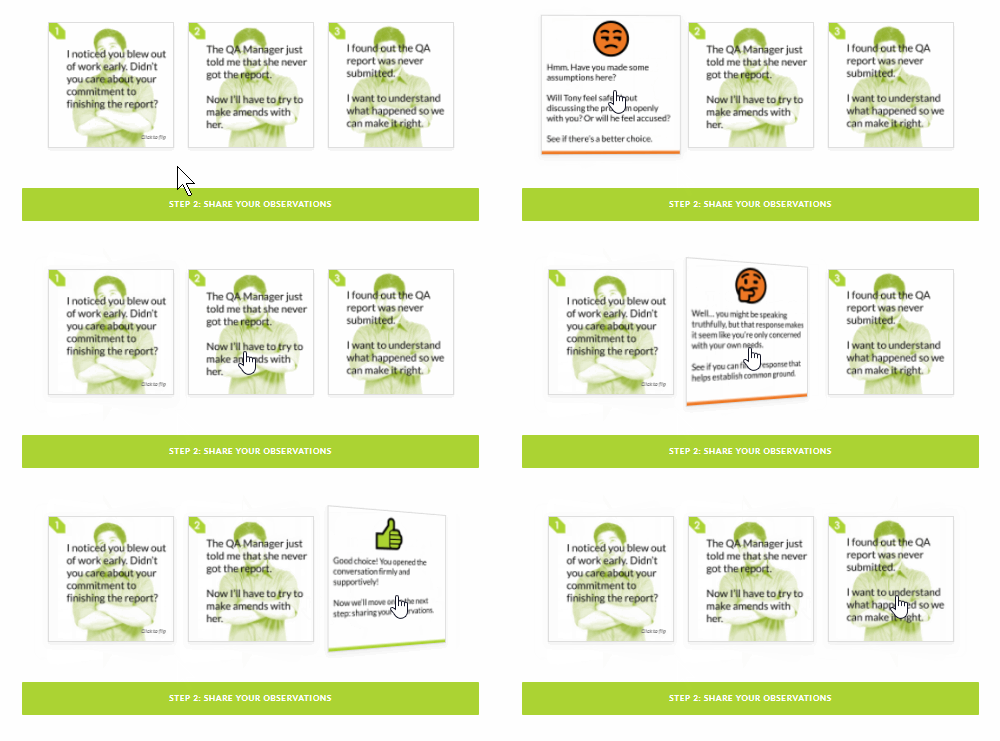
PowerPoint graphics flashcard interaction

Understanding the Image Blocks in Rise

Rise offers a number of blocks that support inserted images (such as image, gallery, and some of the interactions). Most them work perfectly in one of two aspect ratios:

  • 1:1 (square)
  • 16:9 (rectangle)

There are a few blocks that have text overlay where the image is scaled. Those are mostly decorative images so we won’t worry about them.

Understanding PowerPoint Slides

PowerPoint is easy-to-use screen and with some practice, you can build almost any type of visual. Because of this, I build my simple graphics in PowerPoint and save the slides as images.

In PowerPoint, we need to do two things: set slide size and then whatever we build we export as an image.

  • Go to Design>Slide Size and modify the slide size.
  • To save the slide as an image, go to Save As and choose an image format. You can save a single slide or all slides. I usually save in PNG format.

Create PowerPoint Graphics to Use in Rise

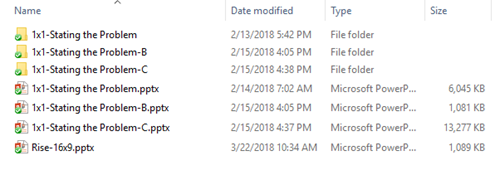
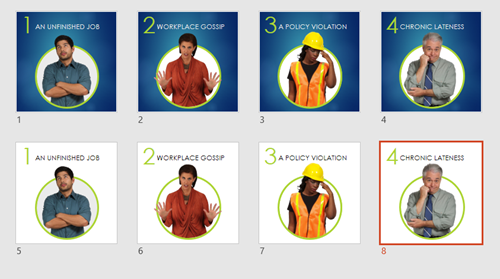
Since there are two aspect ratios, I create two PowerPoint files for my Rise graphics. One is 1:1 and the other is 16:9. You can see the PowerPoint files I created for the scenario demo.

PowerPoint graphics example of file

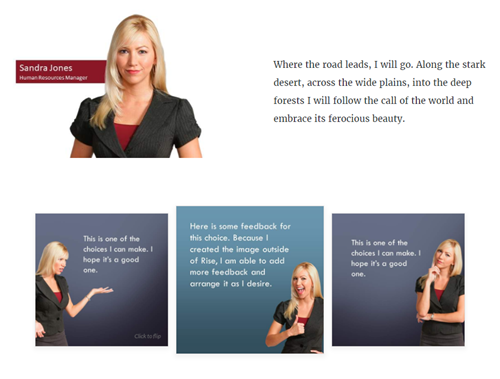
PowerPoint is a freeform slide. I can build virtually anything I need quickly. In the interactive scenario, I created 1:1 images for the flashcards. One side of the flashcard has the question text and the other has the feedback.

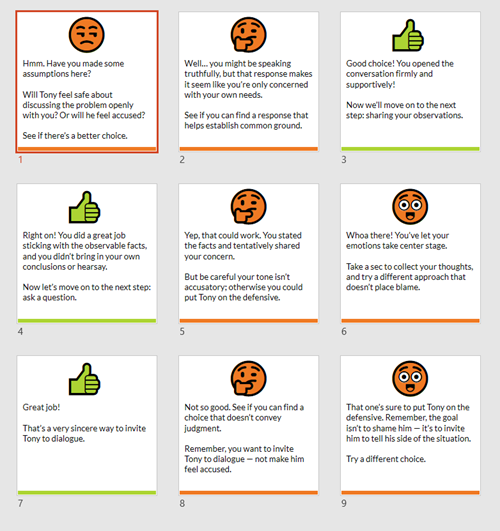
I used the various image editing features in PowerPoint to colorize the graphics. I also used the emjoi features to create some simple feedback graphics. While it’s easy enough to build these graphics with other tools I just find PowerPoint to be easy and fast. However you’re not confined to PowerPoint, you can use the tool of your choice.

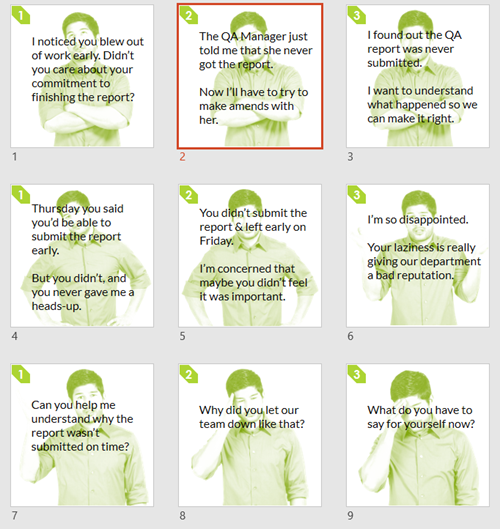
PowerPoint graphics flashcard questions

PowerPoint graphics flashcard answers

The images above are relatively simple. The images below required a bit more work. I had to build it so the character extends out of the frame. You can see that I created a couple of versions. I opted for the lighter version because it made the Rise screen seem more open with more white space.

PowerPoint graphics header image

When you’re all done building your slides, save the slides as images rather than a .pptx file. Then you’ll have a folder of images that work with your Rise courses.

Bonus PowerPoint Graphics Tip

With Articulate 360, you get Studio 360 that includes Presenter and works with PowerPoint. That means you have access to all of the Content Library characters and templates. So if you want the same Content Library characters in Rise, use PowerPoint slides to build the graphics like I did above.

Here’s another example I mocked up for the blog post using the same techniques.

PowerPoint graphics interactive scenario 2

So there you have it. In the first, post we looked at how to build the interactive scenario in Rise. And in this one, we reviewed how to use PowerPoint to quickly build the graphics you need.

Events

Free E-Learning Resources

Want to learn more? Check out these articles and free resources in the community.

Here’s a great job board for e-learning, instructional design, and training jobs

Participate in the weekly e-learning challenges to sharpen your skills

Get your free PowerPoint templates and free graphics & stock images.

Lots of cool e-learning examples to check out and find inspiration.

Getting Started? This e-learning 101 series and the free e-books will help.