The Rapid Elearning Blog

Archive for the ‘Visual Design’ Category


visual design e-learning

Let’s face it, we’re not all graphic designers and it can be a chore to get the right look for your slides. This is especially true if your slide is a little light on content leaving a lot of white space. And when this happens, we feel obligated to fill it with something like decorative clip art.

The following visual design tip is a great way to fill the space and maintain some context. It adds texture, looks nice, and is really easy to implement.

Examples of the Visual Design Tip

I’m not sure if there’s a formal name for this visual design tip but I like to call it the transparent echo technique. You’ll notice that the main image is repeated, like an echo. It’s still present but it’s softer and subtle. Here are some good examples of it in action.
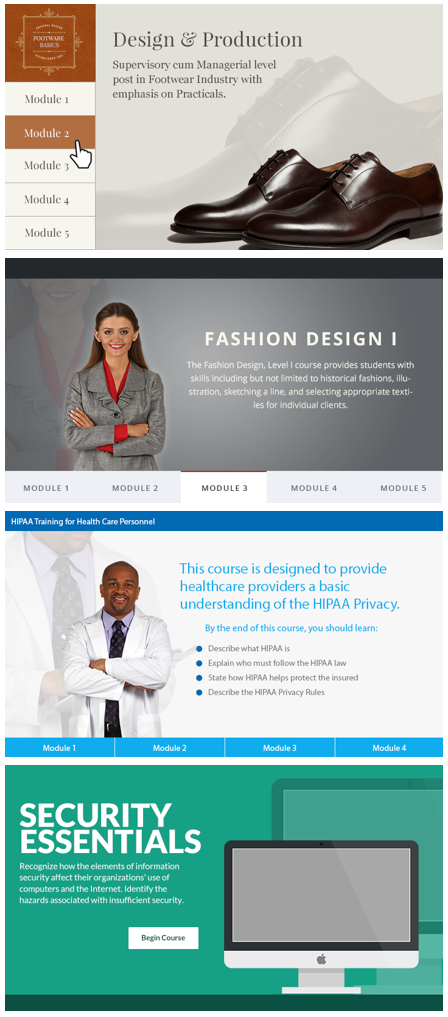
visual design e-learning

As you can see the transparent echo technique works with objects, characters, and even illustrations. It’s a good visual design tip to have in your tool chest.

Step to Create the Transparent Echo Technique

Essentially you copy and paste the primary object and use it as a background image.

  • Duplicate the main image and place on the background.
  • Scale the background image up and crop it or move it a little off screen. There’s no right or wrong way to align it. Just do what looks good.
  • Subdue the image. There are a few ways to do this. You can make the image semi-transparent or use the recolor image feature in PowerPoint and Storyline. Another option is to cover the background with a white shape that is semi-transparent. That gives you an easy way to play adjust the level of transparency.

Here’s a video tutorial that walks through the process.

Click here to view YouTube video.

As you can see it’s pretty simple to implement and it’s repeatable with different images throughout the course. Thus you can have slides with different objects, but using the transparent echo technique allows the slides and visual design to remain consistent throughout the course. This technique works great for start screens and menus.

Here are some additional production tips and considerations:

  • Remove the color from the background image. I find that gray images blend better as they are made transparent.
  • Make sure to be consistent in the transparency setting if you use the effect on multiple slides.
  • Colorize the overlay shape. Pick a color from the main image and tint a semi-transparent shape that sits over the background image.
  • Cut out images work best. You can remove backgrounds from the image in a graphics editor or PowerPoint.
  • Play around with the scaling of the image and how it’s framed on the slide.
  • Use derivatives of the same image. Look at the doctor image above. Same character but different poses.

The transparent echo technique is an easy way to dress up slides without plastering it with clip art or decorative images. You maintain context and get a nice graphic with minimal effort. If you try your hand at it, I’d love to see what you do.

Events

Free E-Learning Resources

Want to learn more? Check out these articles and free resources in the community.

Here’s a great job board for e-learning, instructional design, and training jobs

Participate in the weekly e-learning challenges to sharpen your skills

Get your free PowerPoint templates and free graphics & stock images.

Lots of cool e-learning examples to check out and find inspiration.

Getting Started? This e-learning 101 series and the free e-books will help.


free e-books and best e-learning books

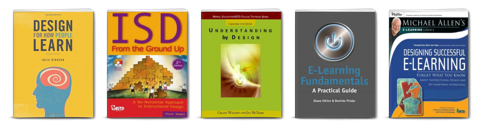
One of my goals each year is to read one book a month that will help sharpen my course-building skills. I’m always asked for book recommendations. Some of the recommendations are for those getting started, even if you’re an experienced course designer it helps to review familiar course design concepts or expand to other fields like UX or graphic design.

If your goal is to read twelve books this year, here’s a list to help you get started. Even if you don’t read them all this year, some of these are good to have on hand in your elearning reference library.

Instructional Design Books

instructional design books free e-books and best e-learning books

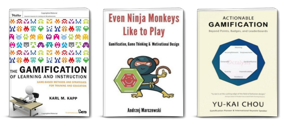
Gamification Books

gamification books free e-books and best e-learning books

Gamification is more than a buzz word and the principles that make games work can be applied to course design to create more engaging and effective elearning.

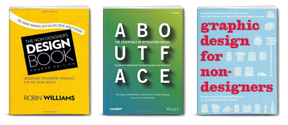
Graphic & UX Design Books

graphic design books free e-books and best e-learning books

Courses are more than content. The look and feel of the content is also important as well as the user experience. Here are some good books to help you learn more.

Video Production

video books free e-books and best e-learning books

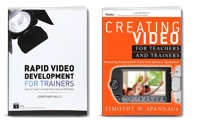
Video is viable for elearning now so it doesn’t hurt to learn more about using it in your courses. The challenge for many of us is how to do it on a budget. Here are two books that have been recommended to me. I haven’t read either yet. If you have, let me know what you think.

The links to Amazon books may produce a slight commission.

12 Free eBooks

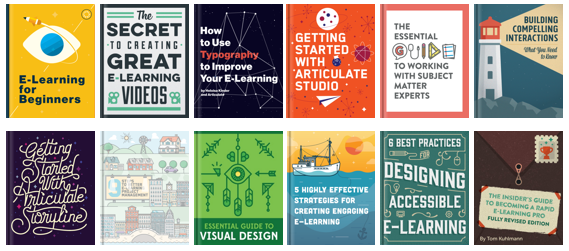
I’ve mentioned this before, but there’s a good list of free ebooks in the elearning community. If you don’t want to spend money, this is a good place to start. You have one free ebook for each month.

free e-learning books free e-books


My first book to read will be Even Ninja Monkeys Like to Play. What are you reading this year?

Events

Free E-Learning Resources

Want to learn more? Check out these articles and free resources in the community.

Here’s a great job board for e-learning, instructional design, and training jobs

Participate in the weekly e-learning challenges to sharpen your skills

Get your free PowerPoint templates and free graphics & stock images.

Lots of cool e-learning examples to check out and find inspiration.

Getting Started? This e-learning 101 series and the free e-books will help.


engage learners

One of the big challenge in crafting a learning experience is figuring out how to engage the learners. This is especially true for a lot of corporate training that is compulsory and not always connected to performance expectations.

Today, we’ll review 5 ways to engage your learners and build a better learning experiences.

Engage Learners with Relevant Content

Engaged learners need content that is relevant to their needs. If it’s not, then they’re less apt to be motivated which leads to less engagement. It forces you have to do a lot more to increase their motivation and guide them through the content.

interactive e-learning engage learners

I discuss relevant content quite a bit throughout the blog and make it one of the key building blocks for interactive elearning.

Engage Learners with Just-in-Time Delivery

At a previous organization, we installed a new phone system. We had to train so many people on the new system that the first groups were trained months before the system rolled out. By the time the phones came online, a lot of what they learned was lost. That was OK, because we had some cheat sheets and quick tips that offered help for the most common tasks.

coursel interactive e-learning engage learners

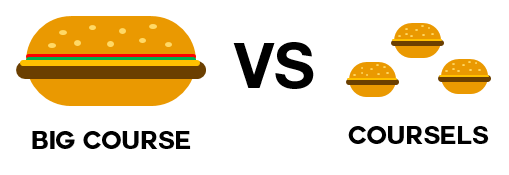
Instead of a big course delivered months in advance it would have been easier to build lighter modules (similar to the cheat sheets) that delivered the necessary content at the point of need. I like to call these micro-learning modules, coursels (as in course morsels).

With YouTube and similar media services, people are conditioned to search for what they need when they need it. Why can’t the online training follow suit? Focus less on sharing every piece of content and more on context; and then work towards making it easy to search and access bite-sized training at the point of need.

Engage Learners with the Look & Feel

Learners perceive a product as more usable than it may actually be if the design is aesthetically pleasing. This is known as the aesthetic-usability effectIt’s also possible that they may reject a product that is actually better because it may not be as aesthetically pleasing.

visual design for e-learning course engage learners

Even if you build basic courses, place a lot of focus on getting the right look and feel. There’s a visual context that works for your course as well as a way to create novel and engaging interactions. These don’t replace good instructional design, but they do contribute to the perception the learner has of the course and its value. And that’s critical to the initial engagement.

Engage Learners with Interactive Content

Most courses are linear with little, if any, interactive elements. That’s fine for consuming information. But it doesn’t make for engaging learning experiences. An easy way to engage learners is to add interactive elements to the course.

interactive branching engage learners

Generally, there are two facets to interactive elearning. The first is getting the learner to interact with onscreen elements. These interactions are clicking, mouseovers, dragging, and/or data entry. The second is getting the learner to process and interact with the content. Usually this involves some Socratic questions or more involved interactive, branched scenarios.

Engage Learners with Free Navigation

One of my pet peeves is locked navigation. We all know why it happens: the customer wants to make sure that the learner sees all of the information. Otherwise, how else would they learn it?

Obviously, this is a false assumption. People don’t learn just because you expose them to content. And making it mandatory to see content is not an appropriate way to assess knowledge.

Instead of locking content down, give them the freedom to access and explore the content. If you want them to learn more, provide a challenge that causes them to pull in the content and make decisions. This is a much better mechanism than you pushing it out to them.

branched scenario engage learners

If you want to ensure they have learned something, then instead of locking the navigation, lock the course at decision points. Give the learner freedom to move around the content and explore. However, for them to advance, provide decision-making scenarios that require an understanding of the content. This gives the learner more control and the course owner some assurance that the learners know the content.

There are many ways to implement these tips to create engaging and interactive learning. The key is to engage the learner and create an experience that is memorable and enjoyable as well as educational.

Events

Free E-Learning Resources

Want to learn more? Check out these articles and free resources in the community.

Here’s a great job board for e-learning, instructional design, and training jobs

Participate in the weekly e-learning challenges to sharpen your skills

Get your free PowerPoint templates and free graphics & stock images.

Lots of cool e-learning examples to check out and find inspiration.

Getting Started? This e-learning 101 series and the free e-books will help.


search free stock image sites

It seems like every day there’s a new site that offers free stock images. There are so many, that sometimes it’s a burden to process so many choices. Seriously, how many stock images are you really using?

In the past, I’ve save you some time by reviewing free stock images and curating them into contextual downloads. However, even that can be a bit much to manage. What you need is an easy way to search through all of those free stock image sites so you can find what you need when you need it.

The good news is that there are three such sites where searching and finding free stock images is possible.

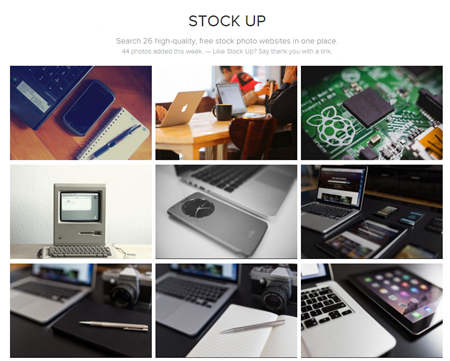
Stock Up

search free stock images via Stock Up

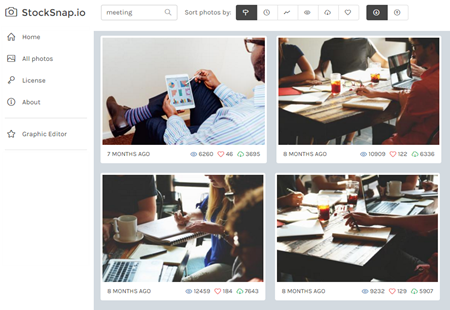
Stock Up is courtesy of Site Builder Report. It’s a search engine that indexes free stock photo sites. I consider it the Lord of Rings site because it’s one site to rule them all. Because of this, it may be the only link you need since most of the free stock image sites that I listed in this post are already indexed there.

Stock Snap

search free stock images via Stock Snap

Stock Snap is similar to Stock Up because it’s a curated resource of free stock images that don’t require attribution There’s a lot of overlap.

Exposure

free stock images

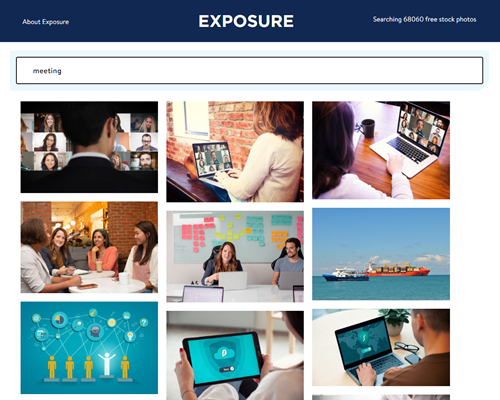
Exposure another site that searches free stock image sites. They’re listed as free for commercial use.

You’ll notice that all of these sites pull from the same free stock images sites. As I mentioned before, you probably only need to use one of these sites since they all host the same free stock images. But it doesn’t hurt to have all three sites at your fingertips.

Events

Free E-Learning Resources

Want to learn more? Check out these articles and free resources in the community.

Here’s a great job board for e-learning, instructional design, and training jobs

Participate in the weekly e-learning challenges to sharpen your skills

Get your free PowerPoint templates and free graphics & stock images.

Lots of cool e-learning examples to check out and find inspiration.

Getting Started? This e-learning 101 series and the free e-books will help.


multimedia for e-learning blog post

Multimedia for elearning is something common to all of our courses. There’s only so much you can put on the screen. It’s either going to be text or some sort of multimedia like shapes, pictures, or video. In addition, you may have audio narration to complement what’s on the screen.

At some of our workshops we discuss inexpensive ways to acquire multimedia for elearning. We’ll reference some of the previous posts when we’ve discussed different ways to either get free multimedia for elearning or learn to create them yourselves:

However, sometimes you don’t have the time or skill to create your own assets. And all of those free media assets may not fit the real needs of your course design. That means you’ll have to find someone to build them for you.

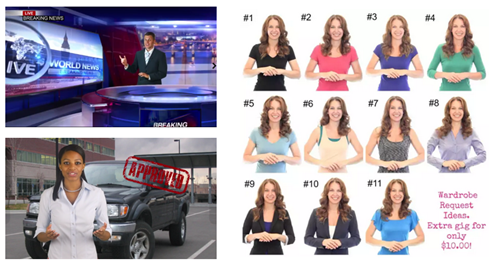
Fiverr is a site that offers access to all sorts of multimedia and graphic artists for $5 a project. While the advertised costs are $5, most of the projects are limited in scope and the artists are looking for a way to market their skills and have up sells. If you plan it right, you can get multimedia for elearning at a reasonable price.

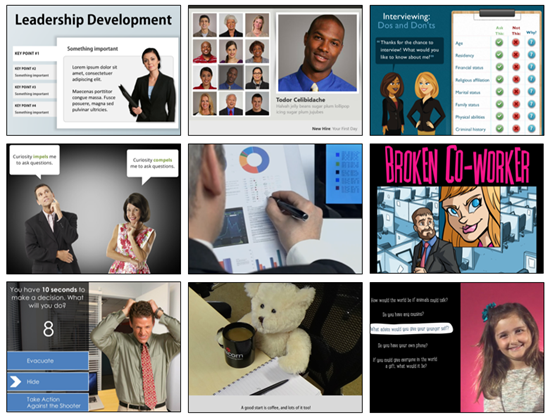
Here are a few examples I pulled together to give you some ideas. I have no affiliation with any of the artists and it’s possible they may have restrictions on what they will do. So you’ll want to connect with them personally.

Multimedia for E-Learning: Custom Illustrations

multimedia for e-learning inexpensive custom illustrations for e-learning

Proposed plan:

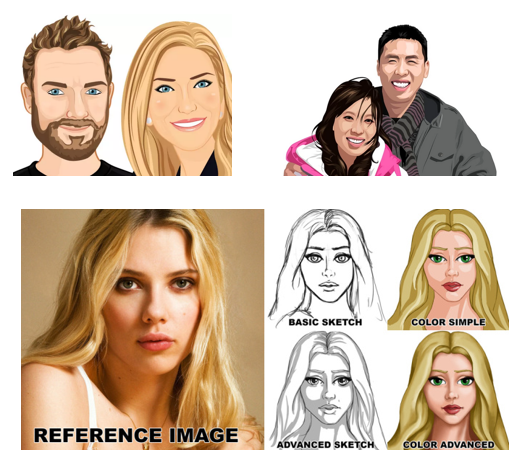
Many of the artists only do head and shoulder images. However, some do full body. They usually have a starting pay scale and range of add-ons. Even if the image goes from $5 to $50 per image, that’s a great deal for custom art work.

  • Storyboard your screens so you know exactly what characters and poses you need.
  • Create a shot sheet with a list of required characters.
  • Find some co-workers and take photos of the expressions and poses as a reference for your artist.

Artists shown: BroomvectorMariadesignsPunisher357

Multimedia for E-Learning: Audio Narration on a Budget

multimedia for e-learning voice over audio narration for e-learning courses

Proposed plan:

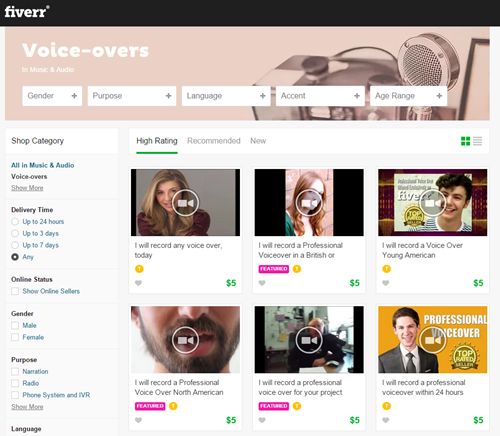
As can be seen in the image above, you can select voiceover talent by gender, accent, age, and more. There are a lot of really good voiceover artists on Fiverr. Most of them will do 75-100 words for $5.

This is close 75 words of text:

What would the world be like if the objects that surround us became less mysterious, if not only the bits but also the bolts became something into which we could peer? What if the black boxes that occupy our desks, our homes, our skies suddenly became transparent?

We asked more than a dozen open-minded technologists to explain how applying open source principles to physical devices is shaping the way we work and play.

That means you can get each slide recorded for about $5-15 per slide.

  • Write your narration script.
  • Get rid of half the words. You don’t need as much as you think you do.
  • Make sure it sounds like a human is reading it and not some corporate drone or lawyer (although they’ve been known to be human).
  • Get the final script approved before sending it out to be recorded to avoid do overs.

Multimedia for E-Learning: Video Actors & Presenters

multimedia for e-learning video presentations and green screen video for e-learning

Proposed plan:

Adding video to your elearning courses adds a lot of texture and personality. To me this is one of the best things available on Fiverr because creating video requires video production skills, audio narration, and great on-screen talent.

Many of the producers offer green screen recording so that adding the videos to your course screen is seamless. Although unless you can do the editing, you want to request that the video has a transparent background and not the green screen.

To manage costs and production, I’d only add video to a few strategic sections like the opening, summary of sections, and closing.

  • Storyboard the course to determine where you need video.
  • Develop some shot sheets of required video. Also determine if the person is on left or right of screen. A recording with a transparent background is ideal because you can nudge it into position.
  • Create narration script.

Artists Shown: TamerakSebski22Mjenning

Multimedia for E-Learning: Custom PowerPoint Templates

multimedia for e-learning powerpoint templates for e-learning

Proposed plan:

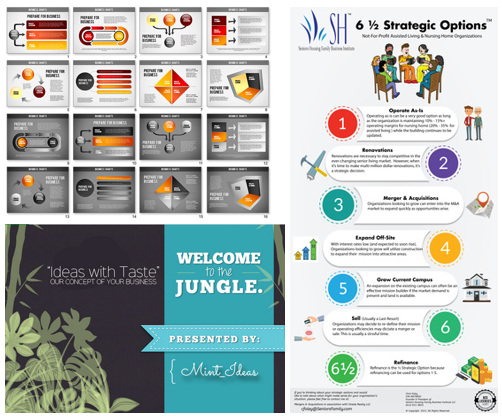
There are artists who will create infographics, templates, and presentations. Essentially any graphic file can find its way on your course screen. What’s the difference between a PowerPoint, web site, or elearning course screen? They all have the same elements.

  • Storyboard your screens
  • Define visual elements and content containers
  • Determine color scheme  and font style

Artists shown: Mint_IdeasBelieveable VideoDanukz

There are all sorts of other services offered on Fiverr that may add value to your courses. One of the benefits of the site is that you can dip your toes in the market and see how things go. You’ll get some inexpensive multimedia assets and can test the service and responsiveness of potential multimedia developers. As I stated earlier, I have no vested interest in the site or the artists. I just want to give you some ideas on how you might use it to your advantage.

If you do use the services on Fiverr, especially video, let me know. I’d love to see how it turns out.

Events

Free E-Learning Resources

Want to learn more? Check out these articles and free resources in the community.

Here’s a great job board for e-learning, instructional design, and training jobs

Participate in the weekly e-learning challenges to sharpen your skills

Get your free PowerPoint templates and free graphics & stock images.

Lots of cool e-learning examples to check out and find inspiration.

Getting Started? This e-learning 101 series and the free e-books will help.


e-learning characters add interest and context

When designing the visuals for an elearning course there are only so many things that fit on the screen and one of the most important of those things is a character. Here’s why.

E-Learning Characters Initiate Engagement

Adding the right image initiates engagement because it draws the learner’s attention, communicates the general topic, and can generate a visceral reaction. Review the images below. What response do they elicit? What do you think the courses are about? Are they serious? Funny? Do they seem interesting?

e-learning characters for online training

Suppose you can only put one image on your screen, what would it be?

Many of the courses I see use bland, corporate branded templates coupled with generic stock images. The imagery is boring and does nothing to engage the initial interest. That can all change when coupling the right characters with good content.

Simple Ways to Use E-Learning Characters

Obviously this is a challenge because most of us aren’t illustrators nor have access to graphic designers who can create custom characters for us. If that’s true for you, here are a few simple solutions:

  • Choose characters that map to the context of your course. You may be stuck with generic stock photos, but choose the ones that align to your course content. For example, if you’re creating a medical course, select medically-themed characters. Also, instead of cut-out characters, select a character in a contextual background. Seems obvious, but it’s the first step.

medical e-learning characters

  • Select a consistent visual style. You’ll notice in the first image above that the characters range from photographic to illustrated vectors. Find a style that works and use it consistently. If you use photos, select the same type with similar backgrounds. If you use vectors, use the same style. Or flip it. If you always use photos, try illustrations.  And you may be able to edit them to meet your specific needs.
  • Shoot your own photos. At least two of the images above are not stock photos. Here’s a post with tips when shooting your own stock photos.
  • Don’t use humans. Characters can be animals, icons, etc.
  • Try some that are more dramatic or in your face images. Humor and drama go a long way to initiate engagement.

funny e-learning characters

Additional resources:

  • If you need some examples of how people have used characters in elearning courses, check out this weekly elearning challenge.
  • These two books discuss characters/avatars in course design. Some people call them pedagogical agents. Those are the people I tend to avoid. In either case, these two books discuss how they may add value to your courses: E-Learning and the Science of Instruction and The Gamification of Learning and Instruction. 

Characters add context. Medical characters say it’s a medical course. People in suits suggest something more corporate. Someone dressed as a clown probably means executive training. See how that works? Adding the right character is a step in the right direction for your visual design.

Step away from bland, generic templates. Find ways to add characters to your screens. It’s one of the easiest ways to engage your learners visually.

Events

Free E-Learning Resources

Want to learn more? Check out these articles and free resources in the community.

Here’s a great job board for e-learning, instructional design, and training jobs

Participate in the weekly e-learning challenges to sharpen your skills

Get your free PowerPoint templates and free graphics & stock images.

Lots of cool e-learning examples to check out and find inspiration.

Getting Started? This e-learning 101 series and the free e-books will help.


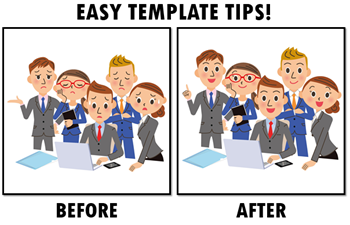
e-learning templates tips

We all work at the speed of business which means that we have to find tips and tricks that save time. In today’s post I’ll show three easy ways to create templates for your elearning courses.

30 Second E-Learning Templates

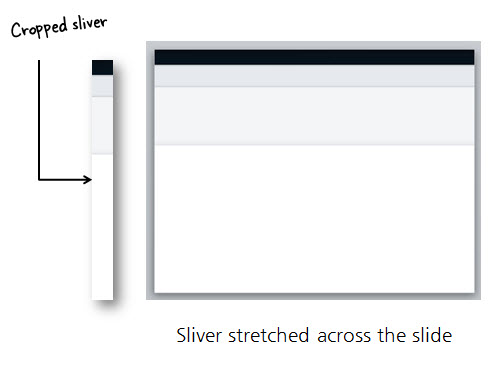
I’ve featured this technique before in the post on How to Build a Template in 30 Seconds. Essentially, you want to find a viable sliver from an image or screen grab. And then stretch it to create your template. I guess this could also be called the “viable sliver technique” but it doesn’t sound as sexy.

e-learning templates tips #1

Use this technique enough and you’ll save so much time you’ll be able to go to the movies when you should be at work. When you’re boss asks where you were, all you need to say is “30 second template.”

10 Second E-Learning Templates

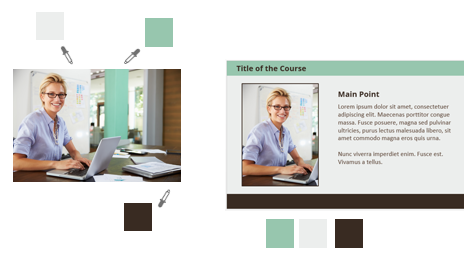
Want to save even more time? Try the 10 second template technique. This is one of David’s favorite tips and he shows how it works in this post on how he built an interactive quiz. The process is very easy:

create e-learning template PowerPoint

  • Create a slide with a header and footer shape.
  • Find a contextual image.
  • Fill the header with a color picked from the top of the image.
  • Fill the footer with a color picked from the bottom of the image. In the example above, I also picked a color for the content area.
  • Add your content.

Pretty simple, huh? They key is that you don’t have to put a lot of thought into the template and how to get the right colors. While it’s simple and the template is basic, it’s a good starting point for beginners.

E-Learning Templates on a Budget

One challenge is creating a nice looking (and functional template) that also incorporates your organization’s branding. In a previous post I shared how to create an elearning template using your organization’s website.

Why not allow your organization’s website (or other branded collateral) inspire your next elearning template?

Websites and elearning templates are very similar. They’re screens and they display content. The types of content you put on the screens is also very similar, as well as how you design their layouts.

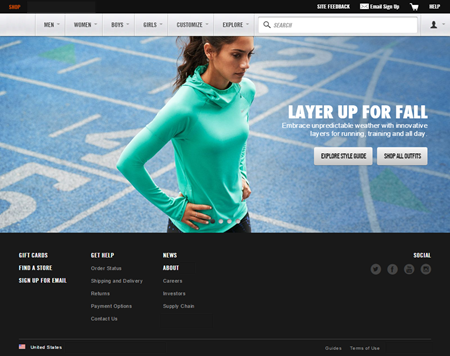
elearning template inspiration

Let’s assume your organization has the site above. It incorporates the brand colors, type, and imagery. You’ll notice that the page also includes tabs and button styles. These are all elements that are typical of elearning courses.

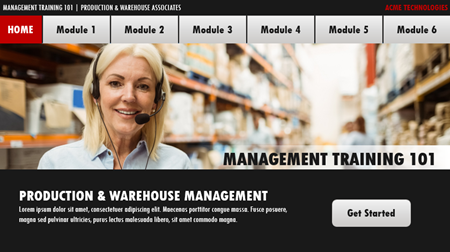
Here’s a quick mock-up I created using the website for inspiration. As you can see, it’s not a verbatim copy. But it does include the colors, button styles, and type (assuming I had the same font available).

e-learning template example

Think of it this way, whether you’re using a web site, marketing collateral, or something else, the organization’s paid a graphics person to design the look and feel of those resources. That means you already have a great design from which to work. And it matches the organization’s brand. Use that design to create your elearning template.

So there you have it, three easy ways to create your own elearning templates. Have you tried any of these techniques? If so, how’d it turn out?

Events

Free E-Learning Resources

Want to learn more? Check out these articles and free resources in the community.

Here’s a great job board for e-learning, instructional design, and training jobs

Participate in the weekly e-learning challenges to sharpen your skills

Get your free PowerPoint templates and free graphics & stock images.

Lots of cool e-learning examples to check out and find inspiration.

Getting Started? This e-learning 101 series and the free e-books will help.


draw custom characters

In previous posts we discussed how visual thinking helps us focus on core concepts and teaches us to communicate those with graphics and other visual elements. We also looked at ways to practice developing your visual thinking skills so that you can effectively apply them to your course design.

In today’s post we’ll look at how to create custom characters that you can use in your visual thinking activities and course design.

The Case for Hand Drawn Custom Characters

You don’t have to be an artist to create custom characters. In fact, there’s a lot of value in hand drawn characters because they add personality and stand in contrast to the more typical (and often sterile) characters used in a lot of elearning courses. It’s just a matter of learning a few production techniques and then taking some time to practice.

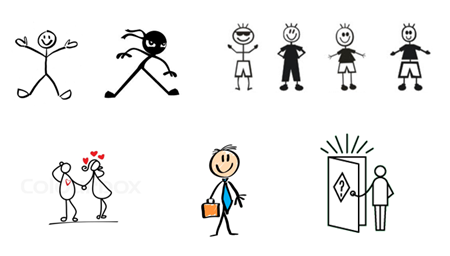
Here are some examples of hand drawn characters I found online. You’ll notice that they’re relatively simple and that’s the key. Unless you’re really skilled, keep them simple. I think you’ll agree that the characters below are something most of us can create.

custom characters found in online search

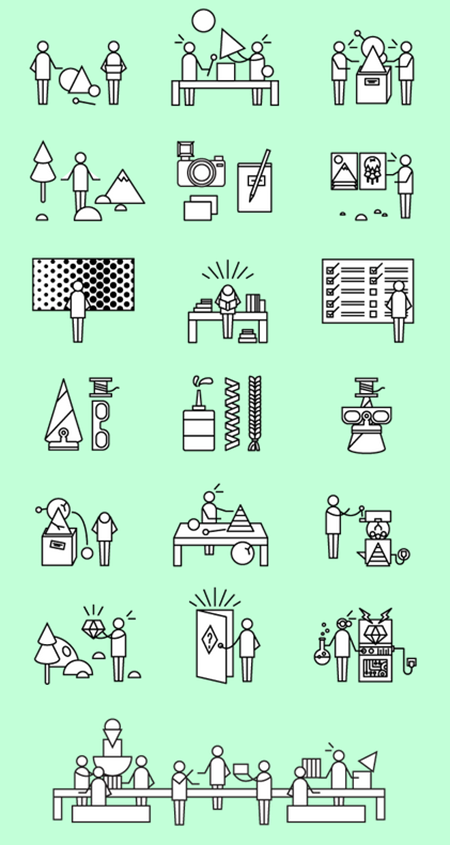
I like the custom characters below created by Ella Zheng. They’re clean and based on a few simple shapes. And they work well with the other icons in her examples.

custom characters built with simple shapes

I could see something like these characters and icons working in an elearning course. And for you, they’re easy enough to build in PowerPoint because they’re simple combinations of some basic shapes. This is something we discussed in the post on creating your own pictograph characters.

create custom characters in PowerPoint

 Step 1: Decide on a Style for Hand Drawn Custom Characters

Start with a simple stick person. There are a number of ways to create them. You can go with straight lines, thick/bent lines, filled in shapes, square or oval bodies, or just trace over pictures. Below are a few ideas I played with. I like the first one which is a head and lines for legs and arms with no body. It’s easy to create and has a distinct style.

examples of hand-drawn custom characters

Once you develop a style, practice creating that character over and over again so you feel comfortable creating the custom character when you need it. What makes a simple character like this work is the expression and pose. We’ll look at both below.

Step 2: Identify Some Common Facial Expressions for Your Custom Characters

Identify a few facial expressions and practice drawing them. Look at what others have done for inspiration. I like this guy’s approach below, draw some circles and practice the expressions.

custom characters with different facial expressions

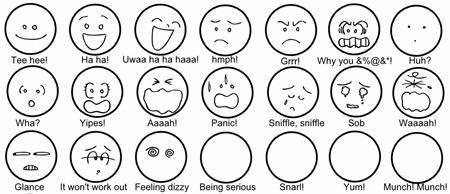
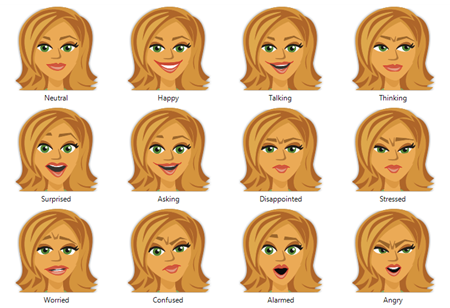
Articulate’s illustrated characters have twelve common expressions. That’s probably all you need for expressions. Practice by recreating those twelve expressions with your own custom characters.

12 simple expressions for your custom characters

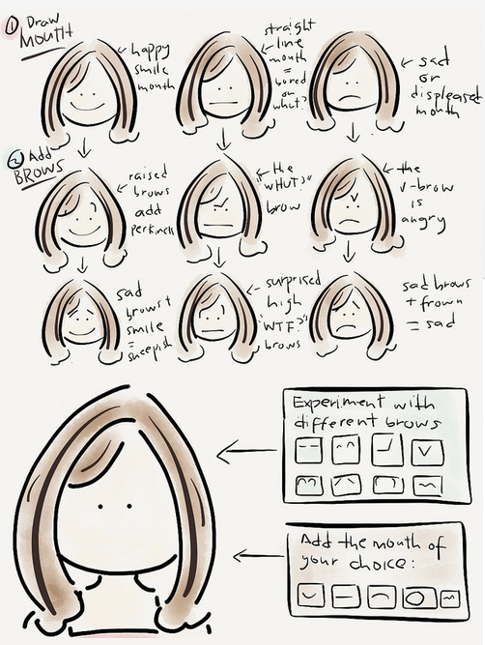
And here’s a good example from blogger, Chinie Hidalgo Diaz, who’s created a distinct look for her characters. As you can see the style of drawing isn’t overly complex. And the water color brush is an easy effect to apply using some of the mobile drawing apps or other graphics editors. These would work great in a comic-panel style course. She also offers some of her own tips on creating facial expressions.

example of custom characters

She focuses on two key areas: the mouth and brows. Start with her expressionless face and then practice drawing mouths and brows to create simple expressions.

Here are some other examples that require a little more practice. And finally, here’s a site that has all sorts of drawing tips for those who really want to push their skills.

As far as the expressions, I’d probably build the expressions as images that I can copy and paste into faces. That means I only have to work on them once and then just pick and choose what I need later.

Step 3: Create Common Poses for Your Custom Character

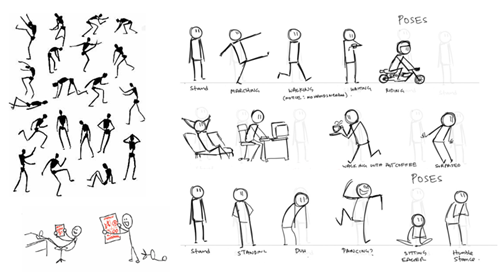
Poses are a bit more challenging. The easiest way to practice is to find common poses and then apply those to your custom character style. I’d start by copying what you see so that you get a good feel for the pose and then draw your character in the poses you prefer. This is also a good reason to keep the custom character’s detail limited. It’s easier to create a pose for a stick figure than it is a character in an outfit.

poses for your custom characters

Here’s a good tutorial on drawing characters with poses.  And ScrawlerMauler shows some of his practice poses.

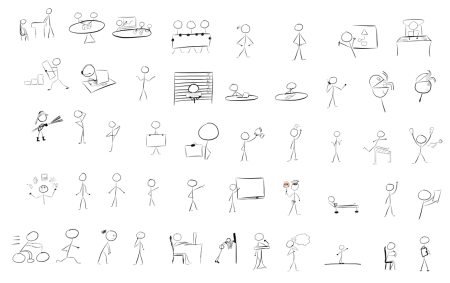
Here are some people who sell stick figure characters if you’re inclined to buy some. You can also find inspiration in how they pose their characters and try your hand at creating the same pose with your custom characters.

Here are some free stick figure downloads in various poses:

free custom characters to download

What are some poses to practice? Here are a few ideas:

  • Sitting
  • Pointing
  • Talking
  • Surprised
  • Angry
  • Holding a paper
  • Thinking
  • Interacting with someone else

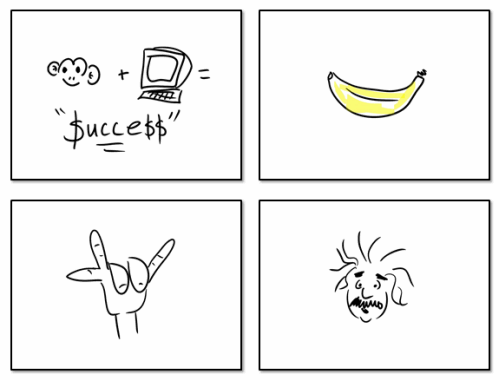
I quickly drew the images for this presentation on how rapid elearning is so simple that even a monkey can do it.  As you can see, nothing fancy, but they work.

hand drawn custom characters and images

If you want to learn more, Dan Roam released a great how-to workbook that shows how to create the images for visual thinking.  You may also be interested in Beyond Words: A Guide to Drawing Out Ideas.  You can learn some simple drawing techniques that can be applied to your elearning courses (and wow your peers as you doodle during those boring staff meetings).

The goal in all of this is recognize that for some of your courses and presentations you can create your own illustrated graphics. This also works well when combined with visual thinking skills. And learning to create your own may help speed up your production and lend itself to courses with more personality.

Have you ever applied hand drawn images to your courses? If so, how did they turn out?

Events

Free E-Learning Resources

Want to learn more? Check out these articles and free resources in the community.

Here’s a great job board for e-learning, instructional design, and training jobs

Participate in the weekly e-learning challenges to sharpen your skills

Get your free PowerPoint templates and free graphics & stock images.

Lots of cool e-learning examples to check out and find inspiration.

Getting Started? This e-learning 101 series and the free e-books will help.


free vector images online

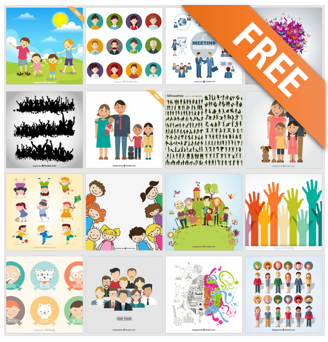
Do a search for “free vector images” and you’ll find hundreds of sites that boast tens of thousands of free images. The problem is many of them are junk and not even worth your time. Besides, how many free vector images do you really need?

Websites that Offer Free Vector Images

As you may know, many of the sites that offer “free” resources only allow them to be used for personal use. That won’t work for your courses and presentations. To make things simple, I reviewed dozens of websites that claim they offer free vector images and narrowed them down to just a few. My criteria for listing the sites below is that they really are free for commercial use. [updated 3/17/2023]

Some of the sites may require credit or attribution. That’s OK. Here are some tips on how to provide attribution in commercial projects when you use free vector images.

Other Sources for Free Vector Images

Another good source for free vector images is from artist community sites or a graphic artist’s own page. Here are a few additional places to locate some good quality, free vector images:

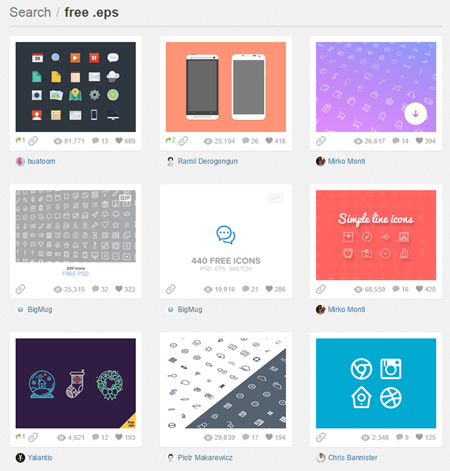
free vector images via dribbble

  • Dribbble: mostly professional quality images
  • Deviant Art: miscellaneous artist site; it’s a mixed bag but there are a lot of free images
  • Snap2Objects: images created by Mauricio Duque
  • E-Learning Heroes: whatever you find in the community you are free to use for your elearning projects and presentations.
  • PageResource: if you sport a mullet and watch Full House, then this site has the perfect free clip art for you.

Editing Free Vector Images

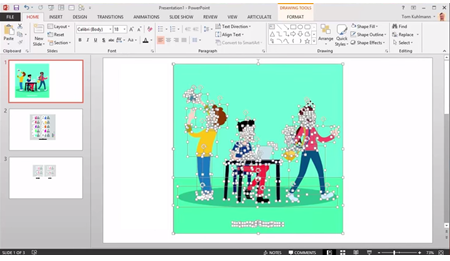
Most of the free vector images are going to be in .AI or .EPS format. If they’re .PNG or .JPG they’re not vectors. Editing the images requires an illustration application like Illustrator or Inkscape (free). However, you can edit most free vector images that are in .EPS format using PowerPoint.

edit free vector images in PowerPoint

Here’s a post that explains how to edit free vector images in PowerPoint and a tutorial video. Unless you’re comfortable with the illustration apps, I’d look for .EPS files first and use PowerPoint.

So there you go, a complete list of sites that provide free vector images that you can freely use in your presentations and elearning courses.

Events

Free E-Learning Resources

Want to learn more? Check out these articles and free resources in the community.

Here’s a great job board for e-learning, instructional design, and training jobs

Participate in the weekly e-learning challenges to sharpen your skills

Get your free PowerPoint templates and free graphics & stock images.

Lots of cool e-learning examples to check out and find inspiration.

Getting Started? This e-learning 101 series and the free e-books will help.


Top PowerPoint Tips

December 9th, 2014

Articulate Rapid E-Learning Blog - top PowerPoint tips

PowerPoint is probably the single best multimedia application available because of its versatility. You can create presentations, rapid elearning courses, illustrations, videos, mobile learning and even books for publishing.

PowerPoint also offers ease of entry. That means someone with no experience can open the application and get started. And the person with lots of experience is given all sorts of capability.

The main challenge with PowerPoint is that many people don’t fully understand the features and usually do very basic work with PowerPoint. And of course a lot of the negativity surrounding PowerPoint comes not from the tool, but instead from sitting through tedious PowerPoint-driven lectures and presentations.

I was asked recently about my favorite PowerPoint tips and tricks. I have a lot that I like, but here are a few of the ones I use quite a bit and find the most valuable.

PowerPoint Tip 1: Step Away from the PowerPoint Template

Templates are good, especially for new developers and those who want to save time. However, your project should guide the template and not the opposite. Unfortunately most people tend to start with the default PowerPoint templates and layouts. So everything has a distinct PowerPoint look.

Articulate Rapid E-Learning Blog - top PowerPoint tips avoid template

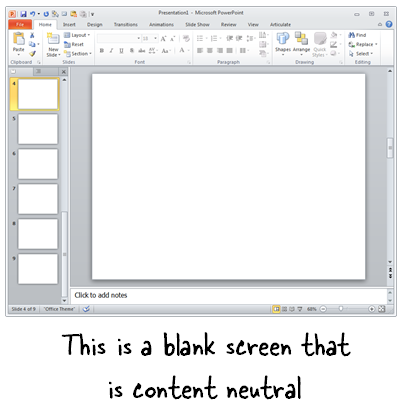
My advice? Put the bullet points down and step away from the template. Start with a blank screen and be intentional about what you build. If you do build a template, build it specific to your project’s needs.

PowerPoint Tip 2: Control Layers with the Selection Pane

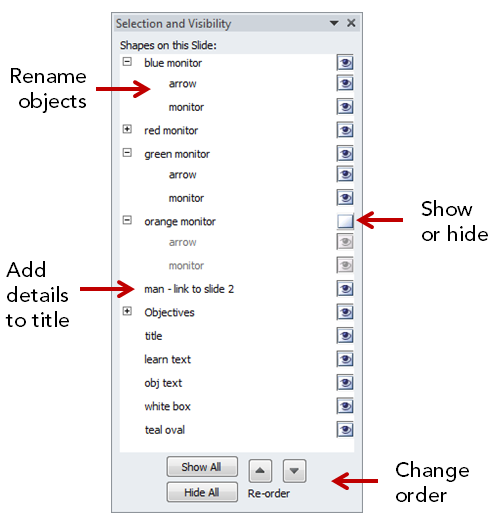
The selection pane displays the objects on the slide. Here is what you can do with the selection pane:

  • Name objects
  • Change the stacking order
  • Show and hide objects

Articulate Rapid E-Learning Blog - top PowerPoint tips use selection pane

PowerPoint Tip 3: Combine Shapes to Create Custom Shapes

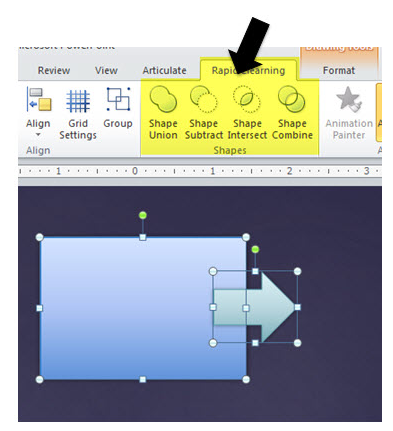
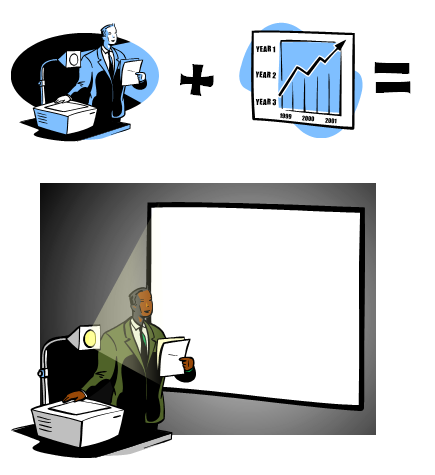
Starting with PowerPoint 2010 you can combine shapes to create custom shapes. Most of the time I use this feature to create custom callouts. I also use it to punch out parts of a shape I don’t need. Combine that with the edit points feature and you can create any shape you want. You can also use the fragment feature to convert text and wingding type into vector images which we looked at earlier. This is perfect for creating your own icons.

Articulate Rapid E-Learning Blog - top PowerPoint tips combine shapes

PowerPoint Tip 4: Layering Objects to Create Custom Graphics

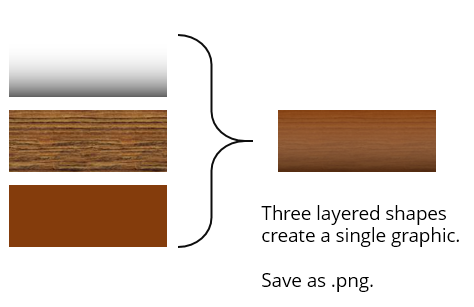
We can stack objects in PowerPoint and control them with the selection pane. We can also make objects transparent. That means we can stack transparent objects to create custom images. Group the objects, right click, and save as an image file. I usually save as .png to retain transparency.

Articulate Rapid E-Learning Blog - top PowerPoint tips create custom graphics

PowerPoint Tip 5: Customizing Clip Art & Vector Graphics

I have a ton of posts on this, which you can find below. Essentially most clip art in PowerPoint is .wmf or .emf. That means they are comprised of grouped vector shapes which can be ungrouped and modified and then regrouped.

Articulate Rapid E-Learning Blog - top PowerPoint tips combine clip art

Unfortunately, Microsoft is dumping the Office.com and clip art site. So I’m not sure how much longer you’ll have to work with these types of files without buying your own. But in the meantime, take advantage of the free resources and create your own graphics.

PowerPoint Tip 7: Apply Custom Formatting with the Format Painter

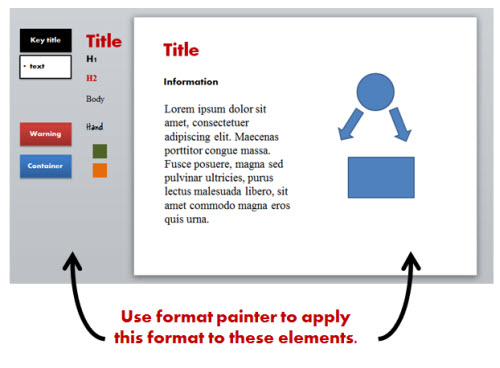
The format painter is an underutilized feature in PowerPoint. Essentially any object’s formatting can be applied to another. I use it create quick styles for the objects in my courses. Then I can apply that to the other objects on the slide.

Articulate Rapid E-Learning Blog - top PowerPoint tips use format painter

This comes in handy when you get one of those junky PowerPoint files from a subject matter expert where there’s no rhyme or reason to the visual design. Create a quick style guide and then use the format painter to apply it.

PowerPoint Tip 8: Apply Animations to Multiple Objects Using the Animation Painter

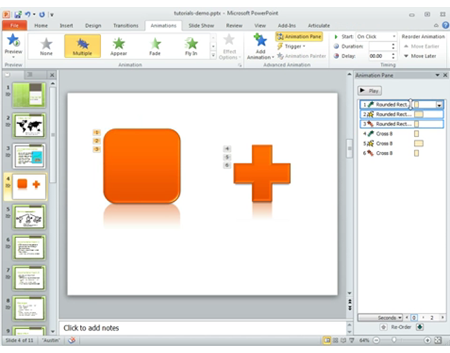
The animation painter is very similar to the format painter. The only difference is that instead of applying an object’s format you apply the object’s animations. This comes in really handy if you have an object with multiple animations and need to duplicate those animations to other objects. In the past, you had the tedious process of rebuilding the animations onto each object. Today, that can be done in seconds using the animation painter.

Here’s a quick video that shows how it works.

Articulate Rapid E-Learning Blog - top PowerPoint tips use animation painter

Click here to view the YouTube video.

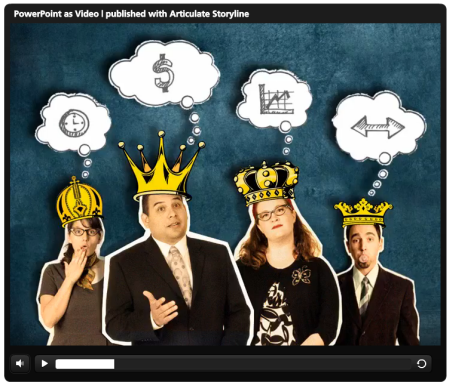
PowerPoint Tip 9: Save PowerPoint Presentations as Video

This is one of my favorite features because anything you build in PowerPoint with animations, narration, and multiple slides can be saved as a single video file.

Here’s a PowerPoint presentation that was saved as an .mp4 video and then inserted into the Storyline player. Try to create something similar with a video editing application. Trust me, it’s not that easy (especially without more advanced skills). But it’s really easy to do in PowerPoint.

Articulate Rapid E-Learning Blog - top PowerPoint tips save as video

Click here to play video.

In PowerPoint 2010 files are saved as .wmv and need to be converted to .mp4. I like to use Handbrake because they have pre-determined settings. In PowerPoint 2013 you can save as .mp4 so that saves a few steps.

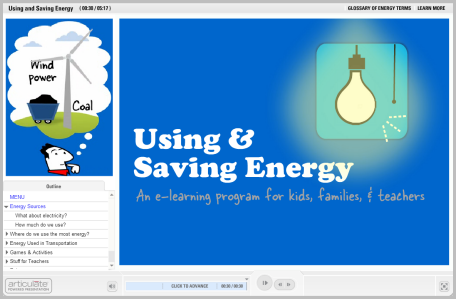
The videos you create can be combined with your other elearning development. Here’s a good example where the sidebar video was created in PowerPoint and then inserted into a rapid elearning course.

Articulate Rapid E-Learning Blog - top PowerPoint tips example of video

Click here to view the PowerPoint video demo.

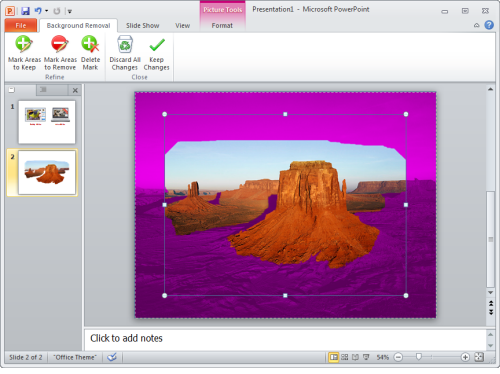
PowerPoint Tip 10: Remove Image Backgrounds

One of the most common reasons elearning developers use image editors like Paint.net and Photoshop Elements is to remove backgrounds from stock images. And they work fine for that. But you can do the same thing in PowerPoint starting with PowerPoint 2010.

Articulate Rapid E-Learning Blog - top PowerPoint tips remove backgrounds

It’s real easy to do. Double-click on your image and select remove background. Then determine what you want to keep and what you want to remove. Easy as that.

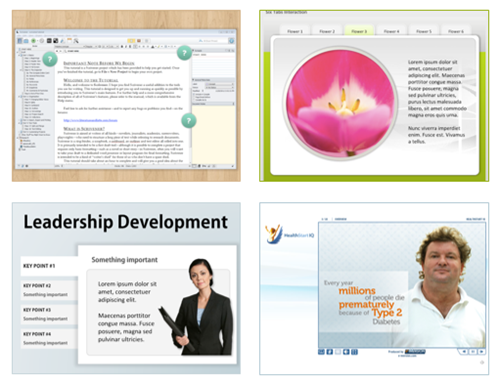
Bonus tip: Use PowerPoint to Create Interactive E-Learning Courses

PowerPoint is a tool most people have and as you can see, is a very capable application. Combine that with Articulate Studio and you have a very easy way to create interactive elearning.

What you build in PowerPoint is converted to Flash or HTML5 to meet your elearning needs. While applications like Storyline add more interactive capabilities, PowerPoint is still an easy entry point for the person just getting started with elearning design.

Articulate Rapid E-Learning Blog - top PowerPoint tips elearning examples

Here are some simple examples of PowerPoint-based interactions:

Other PowerPoint Tips & Tricks

There are literally hundreds of PowerPoint tips and tutorials in the blog. Here are some links from previous posts:

So those are some of my favorite PowerPoint tips. If you could add one tip, what would it be?

Events

Free E-Learning Resources

Want to learn more? Check out these articles and free resources in the community.

Here’s a great job board for e-learning, instructional design, and training jobs

Participate in the weekly e-learning challenges to sharpen your skills

Get your free PowerPoint templates and free graphics & stock images.

Lots of cool e-learning examples to check out and find inspiration.

Getting Started? This e-learning 101 series and the free e-books will help.


PowerPoint custom shapes

In today’s post we’ll look at a few ways to create custom shapes in PowerPoint.

I’ve shown this tip a few times in the past such as how to create custom callouts and chat bubbles. In PowerPoint 2010, you had to find the features I am showing today and then create your own ribbon tab to display them. But in PowerPoint 2013, they added the features to the format toolbar and included a new option to fragment the shapes.

How to Create Custom Shapes in PowerPoint

Here’s a quick tutorial that walks through the process of creating custom shapes. We’ll build a simple callout but you’ll learn how the feature works. Once you understand it, you can modify any shape and basically create whatever you want. This makes PowerPoint a great illustration tool.

Click here to view the tutorial.

How to Convert Text into Custom Shapes in PowerPoint

A side benefit of creating custom shapes is that when you include a text box in the process and use fragment you can convert the text into a vector shape that you can fill and size to meet your needs. I like to pull elements out of the various type faces.

This is also great if you want to create your own icons in PowerPoint. There are all sorts of facefonts, wingdings, and dingbat fonts you can use to do this. Make sure you have commercial right, though. Not all fonts are available for commercial use.

Click here to view the tutorial.

Events

Free E-Learning Resources

Want to learn more? Check out these articles and free resources in the community.

Here’s a great job board for e-learning, instructional design, and training jobs

Participate in the weekly e-learning challenges to sharpen your skills

Get your free PowerPoint templates and free graphics & stock images.

Lots of cool e-learning examples to check out and find inspiration.

Getting Started? This e-learning 101 series and the free e-books will help.


Articulate Rapid E-Learning Blog - how to create illustrated characters in PowerPoint

PowerPoint is a versatile application. You can use it for all sorts of things from presentations to online training programs. In previous posts I’ve shown you how to customize clip art and create your own graphics.

Today’s tip comes courtesy of blog reader, Daniel Albarrán. He sent me an email stating that once he understood the versatility of PowerPoint it opened his eyes to all sorts of possibilities—one of them being the ability to create illustrated characters.

How to Create Illustrated Characters in PowerPoint

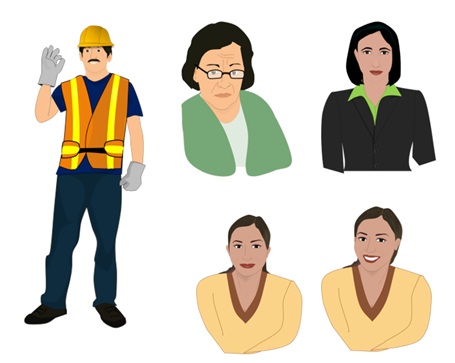
Here are some of the graphics he created in PowerPoint.

Articulate Rapid E-Learning Blog - examples of illustrated characters created in PowerPoint

Articulate Rapid E-Learning Blog - more examples of illustrated characters created in PowerPoint

As you can see, PowerPoint’s a capable application. Pretty cool, huh?

Tips When Creating Illustrated Characters in PowerPoint

Want to create your own illustrated characters? I created a couple of more tutorials with a few extra tips to add to what Daniel started. You can view the tutorials below.

Part 1: Working with PowerPoint’s curve shape.

Click here to watch the PowerPoint tutorial.

Part 2: Working with the custom shapes.

Click here to watch the PowerPoint tutorial.

Here’s a roundup of the PowerPoint tips:

  • Practice using the Curve tool so that you can control the curve and not create too many points. The fewer the points, the easier it is to edit.
  • Edit the shape. Right click on the shape to access the Edit Points feature. From there you can move the points and make adjustments and small tweaks.
  • Show & hide shapes using the Selection Pane.
  • Name the shapes in the Selection Pane for easier management of the image.
  • Use the Shape Union feature to merge the shapes. You can also group them if you want editing control in the future.
  • Right click to save the image. Select .png format to retain the transparency.
  • Don’t worry about being perfect. Also, the less detail the easier it is.
  • Practice, practice, practice. Once you get the hang of it, you’ll never want for the right image. Play around with the gradients and layered objects to create more texture and richness.

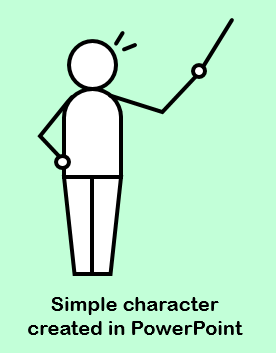
Articulate Rapid E-Learning Blog - an illustrated character created in PowerPoint

Here’s the character I created for the tutorials and the one Daniel shared with me. Feel free to look at how they were created.

Now it’s up to you. Do a practice character and see how it goes.

Events

Free E-Learning Resources

Want to learn more? Check out these articles and free resources in the community.

Here’s a great job board for e-learning, instructional design, and training jobs

Participate in the weekly e-learning challenges to sharpen your skills

Get your free PowerPoint templates and free graphics & stock images.

Lots of cool e-learning examples to check out and find inspiration.

Getting Started? This e-learning 101 series and the free e-books will help.